As a verified business member on TownFish, you can invite staff members, marketing agents, or collaborators to join your venue’s page and assign them different levels of access. This allows your team to help manage your digital presence, campaigns, and customer engagement tools more effectively.
What Permissions Can Staff Members Have?
You can assign one or more of the following permissions to each linked staff member:
- Manage Page – Edit your venue’s profile and details
- Manage Campaigns – Create, update, and manage marketing campaigns
- Manage Posts – Publish news, events, and updates
- Validate Vouchers – Scan and redeem TownFish digital vouchers via smartphone
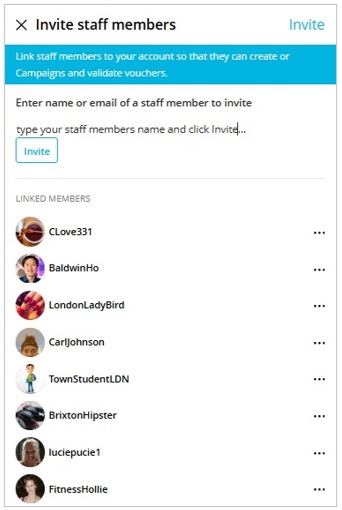
How to Add Staff Members
Follow these steps to invite and manage your staff members:
- Go to Your Campaigns Dashboard
- From your profile page, click the paper plane icon in the top-left corner to open your Campaigns Dashboard.
- Open the Invite Staff Page
- In the Campaigns Dashboard, click the tie icon in the top menu to access the Invite Staff Member page.
- Send Invitations
- You can:
- Invite existing TownFish members by entering their username.
- Invite non-members by entering their email address (they’ll be prompted to register).
- Invite multiple users by separating usernames or emails with commas.
- Click the “Invite” button once you’ve entered the details.
- You can:
- Assign Permissions
- Invited users will appear under the “Pending” list.
- Click the three dots (⋮) next to a user’s info to assign or modify their permissions:
- Manage Page
- Manage Campaigns
- Manage Posts
- Validate Vouchers
- User Acceptance & Linking
- Invited users will receive a notification:
- New users will be taken through a quick registration process.
- Existing members will be linked immediately once they accept.
- Once accepted, they’ll see your venue listed in their profile menu with granted permissions and quick access to your:
- Venue Page
- Campaigns Dashboard
- QR Code Validator
- Invited users will receive a notification:
- Unlinking Staff
- Staff members can unlink themselves at any time via their profile menu.
- You can also unlink a staff member:
- Return to the Invite Staff page.
- Scroll to the user you want to remove.
- Click the three dots (⋮) and select “Unlink User.”
? Tip: Only verified business accounts can invite staff. If you’re unable to access this feature, ensure your venue is properly verified in the system.